
Import any schedule
Any Schedule, Into Your Calendar in Seconds.
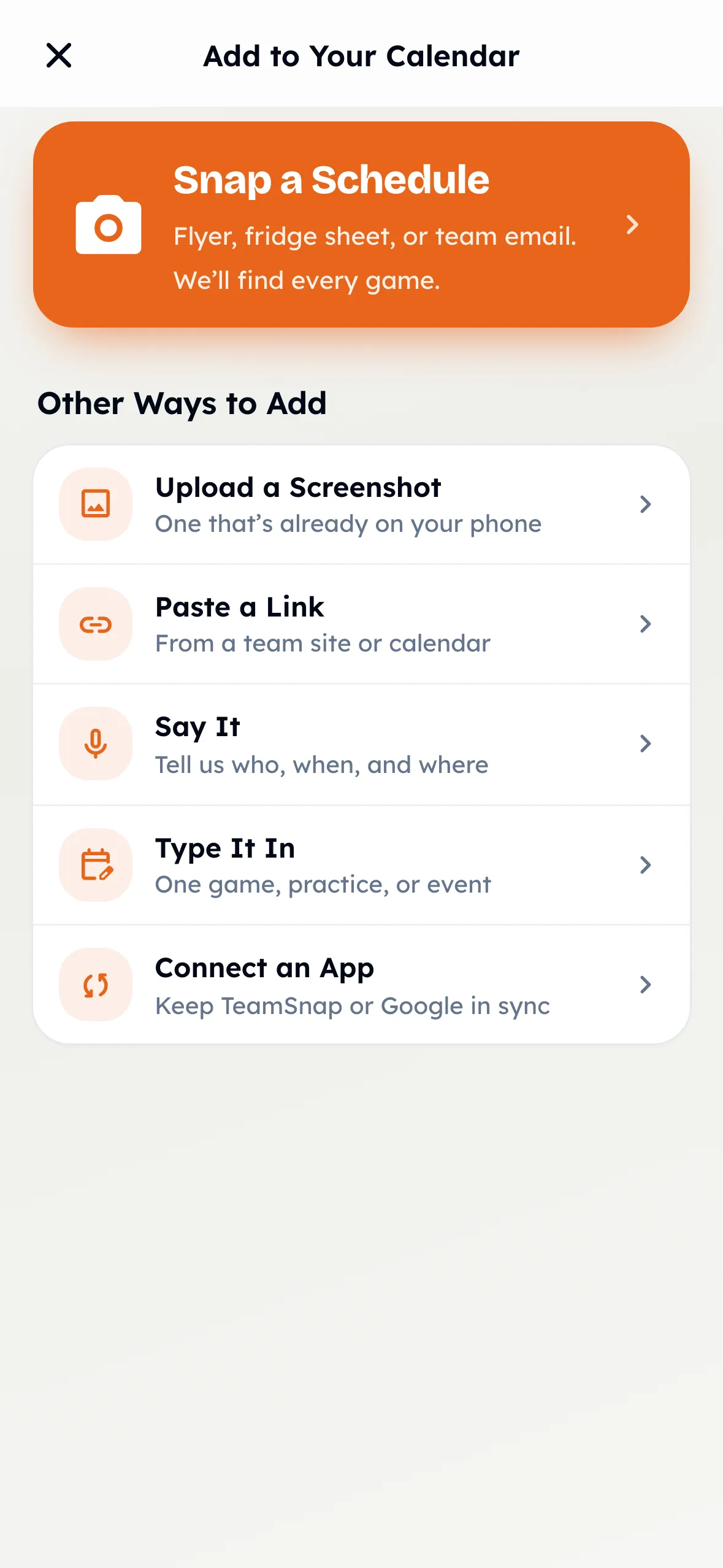
Calendar Crew reads a schedule however it reaches you: a photo of a paper flyer, the coach's email forwarded or screenshotted, a link to the team page, a calendar link from a team app, or a schedule you say out loud. It finds the dates, times, places, team, and kid, then shows you every event to check before anything is added.
How It Works
- 1
Snap, Paste, or Say It
Take a photo, forward the coach's email, upload a screenshot, paste a link, or tell Calendar Crew who, when, and where.
- 2
Check What It Found
Change any date, time, event type, or sport, and pick which kid it is for, or add them right there.
- 3
Done for the Season
Weekly practices go in once and repeat, and calendar links keep themselves current.
Six Ways In
Schedules arrive in every shape. Calendar Crew takes them all, so nobody has to type a season in by hand.
- Snap a Schedule: a flyer, a fridge sheet, or a team email
- Forward a Coach's Email to your family's own address, with flyers and PDFs attached
- Upload a Screenshot that is already on your phone
- Paste a Link to a team site or league page
- Say It: tell it who, when, and where
- Type It In for a single game, practice, or event
Calendar Links That Keep Themselves Current
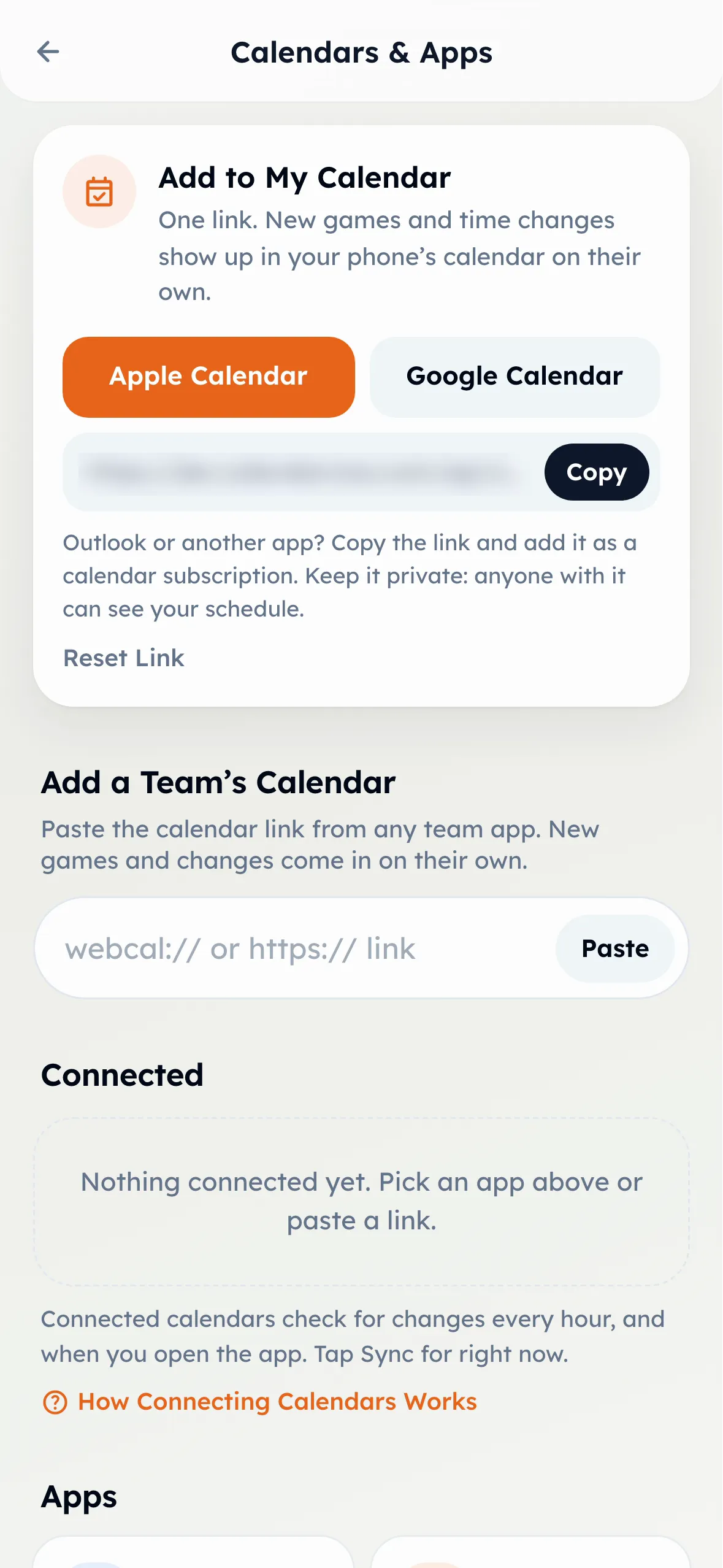
Paste a calendar link from GameChanger, TeamSnap, Heja, ParentSquare, Google, or any league, and the whole season comes in, a year at a time. Canceled games are marked canceled, and games the team takes off their calendar come off yours too.
- Calendar links work on every plan
- One-click TeamSnap and Google Calendar connections
- The same game from two places shows up once
Schedule Pages and School Calendars, Kept Current
Paste a link to a team or school schedule page and Calendar Crew checks it every morning, so a new time, place, or date comes through with the usual alert. Connect a school's athletics calendar, pick your kid's team, and only that team's games come in.
- Meets listed as TBA come in as Time TBA, never a guessed time
- A moved game says what changed, like “Moved from Thu, Nov 19”
- Changes you made yourself stay yours
Schedule Import
Common Questions.
What kinds of schedules can it read?
Photos of paper flyers and printed schedules, emails you forward (attached flyers and PDFs too), screenshots of emails and team apps, links to team and league pages, calendar links from team apps, and schedules you say out loud.
Can I forward the coach's email?
Yes. Every family has its own address for schedules: tap +, then Forward a Coach's Email to copy it. Forward the email there, and Calendar Crew reads the schedule, attachments included, and shows you what it found before anything is added.
What if it reads something wrong?
Nothing is added until you check it. On the review screen you can change the date, start time, event type, sport, title, or place of anything it found.
How many imports do I get?
The free plan includes 5 AI schedule imports a month, and Crew Plus is unlimited (fair use). Calendar links keep updating on their own on every plan.
Does it know which kid the schedule is for?
It works out the team and asks which of your kids plays on it. Confirm once and every event is linked to that team and player.
Get Your Season on One Calendar.
Join the early-access list and we'll email you the moment a spot opens up.
Free while in early access. No credit card.